1 month
$35USD
One month of access
View monthly rental SMC Sniper ProMetaTrader 5 indicator
Session ranges, liquidity sweeps and three entry models in your MT5 chart. Customise the colours, layout and setup filters to suit your workflow.
From $35 USD / one-month rental
Buy and activate through MQL5 Market.
Looking for the TradingView edition?
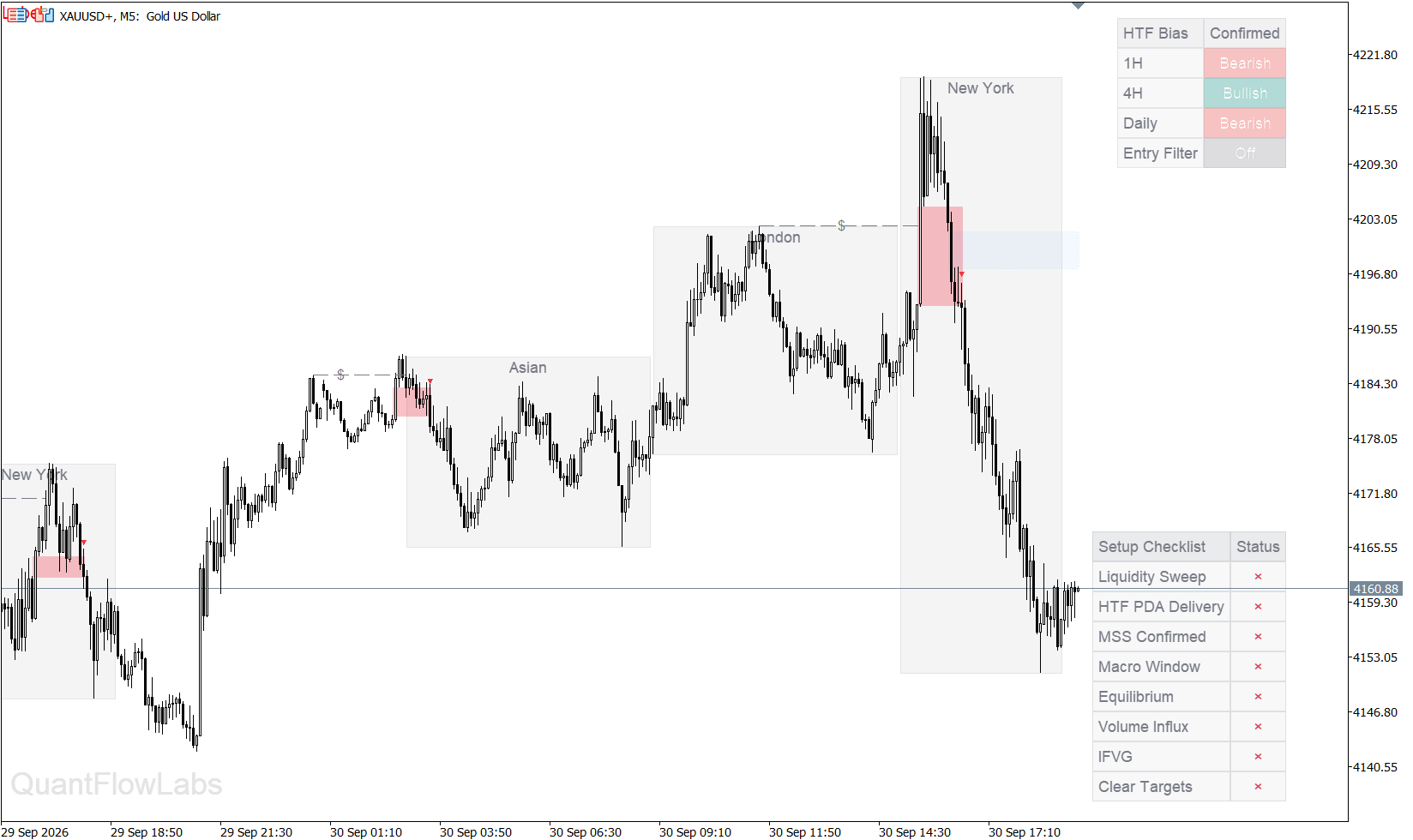
Real MT5 chart example. Select the image to view it full size.
All options are for the MT5 edition. Payment, download and activation are handled through your MQL5 account.
$35USD
One month of access
View monthly rental$99USD
Three months of access
View three-month rental$399USD
One year of access
View yearly rental$799USD
One-time purchase
View outright purchaseRental prices are the total for the selected access period. These buttons open the MQL5 listing, where you select your plan and review the final price and terms. Prices checked 1 October 2026. Five activations per buyer.
Change Entry Model in the existing indicator’s Inputs. Each model has its own trigger and checklist labels.
An eligible liquidity sweep sets the context. A confirmed candle close through the relevant fair value gap boundary supplies the entry event. Optional gap-size and runway filters help define the conditions.
XAUUSD · 5-minute chartAfter a sweep and a confirmed market structure shift, follow the Fibonacci pullback level. The default is 0.618. A qualifying touch must occur on a later candle; the level can move as the swing develops.
BTCUSD · 3-minute chart
Change in State of Delivery uses a delivery-leg reference candle after a liquidity sweep. Confirmation requires a candle close through its wick level. A new sweep extreme can refresh that reference.
SP500 · 15-minute chart
These examples illustrate the interface and setup mechanics. They do not establish a win rate or expected return. Model 2 can show a changing touch preview on a forming candle; review completed candles.
Asian, London and New York ranges appear as real boxes. Adjust each session’s hours and colours, plus fill, borders, labels and history.
Position and size the setup checklist and higher-timeframe bias panel independently. Set their text, backgrounds and status colours.
Customise liquidity sweeps, structure lines, entry markers, targets and the watermark. Keep your existing dark or light MT5 chart and grid.
Add higher-timeframe bias, fair value gap delivery, volume or runway checks where supported by the selected model.
Beginner Mode draws reference levels, with a fixed reward-to-risk target or eligible opposing liquidity target and fixed-RR fallback.
Enable terminal popups or mobile push notifications. Push alerts require MT5 notification configuration and a connected, running desktop terminal.
Purchase or rent the indicator to receive the illustrated 32-page guide covering installation, all 165 settings, session times, the three models and troubleshooting.
Already purchased? Message QuantFlow Labs on MQL5 using the account you bought with. We’ll verify your purchase and send your copy privately.
The guide’s build 1.003 settings also apply to version 1.4. In version 1.4, higher chart periods show M1–H1 guidance instead of a startup error. Presets change appearance; configure broker time and logic separately.
Buy or rent using your MQL5 account, then install from MT5 Market with that same account.
Sessions use New York local time, including US daylight saving. Set the broker UTC offset and daylight-saving rule, then verify the boxes against your chart.
Attach one copy on an M1–H1 chart. Open Inputs to select the entry model, adjust appearance and review completed-candle examples.
Check the platform, time settings and access method before choosing your plan.
Open the MQL5 listingThe MT5 edition is a separate MQL5 Market purchase or rental. TradingView access is managed through Whop and does not activate the MT5 product.
Use MetaTrader 5 desktop on M1 through H1. Your broker must provide the instrument and sufficient history. Higher chart periods display guidance to switch to an intraday timeframe. This is an MT5 indicator, not an MT4 product.
The MT5 edition follows the same three-model workflow. Broker prices, volume, daily candle boundaries, available history and time settings can produce different signals. Compare completed candles with matching settings; identical results across feeds are not promised.
No. Entry markers, stop-loss and take-profit lines are analysis references. The indicator does not open, manage or close orders, and a chart touch does not confirm a broker fill.
Yes. Your chart background, candles and grid stay under MT5 chart Properties. Indicator Inputs let you change session colours and transparency, markers, lines, labels, dashboard position, size and colours.
Choose a one-month, three-month or one-year rental, or purchase unlimited use. The listing includes five activations per buyer for computer and operating-system configurations. This is an installation allowance, not a limit on customers. Review the current terms and price on MQL5 before paying.
Use the product Comments section or private messages to QuantFlow Labs on MQL5. Include the version, broker/server, symbol, timeframe, model and relevant date/time. Remove account details from screenshots and never share your password.