Your range, precisely defined
Choose the opening window and timezone. Add a second session when your workflow calls for it. New York local time is the default.
Available on MQL5 Market
 ORB Ultimate Pro MT5
Turn your chosen session into a defined range, a clear confirmation and visible risk references. Built around the way you trade the open.
From $30 USD for one month. Purchase and activation through MQL5 Market.
Looking for the TradingView edition?
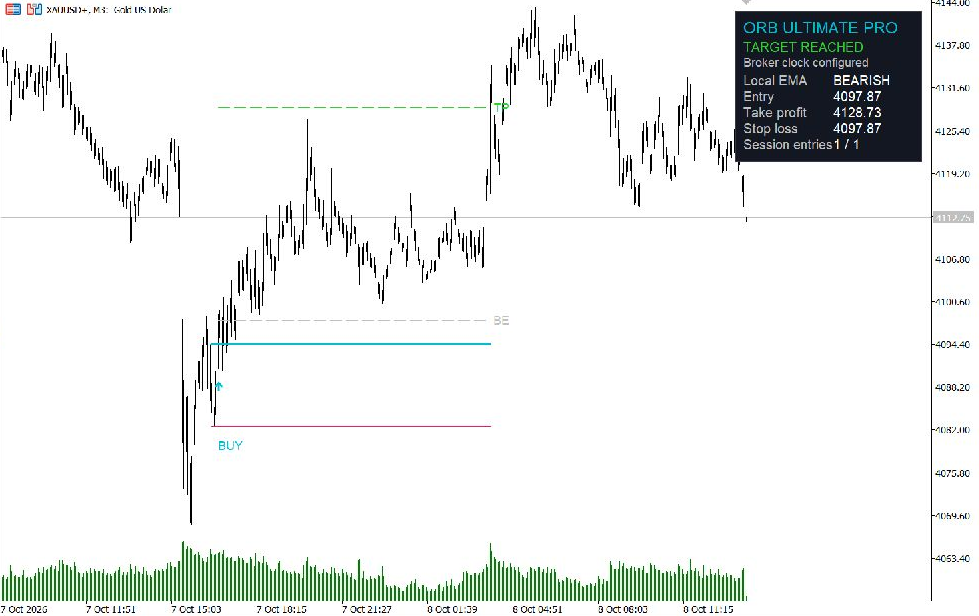
Captured in MT5. Select to inspect the full chart.
Begin with the core opening-range logic. Add only the filters and references you need.
Choose the opening window and timezone. Add a second session when your workflow calls for it. New York local time is the default.
Follow the first qualifying breakout, or require a later retest and confirming close. Choose candle-close or wick detection and an optional tick buffer.
Add EMA, completed higher-timeframe trend, volume, VWAP, momentum, ATR range, RSI or previous-day proximity filters individually.
Four stop methods, reward-to-risk or ATR targets, and an optional breakeven reference keep the relevant levels on your chart.
The dashboard follows the range, breakout and reference outcome. Expiry, confirmation-window and session-entry controls define eligibility.
Adjust range colours, dashboard placement, visible levels and displayed history. Optional popup, push and email alerts support your routine.
A gold M3 example from 7–8 October 2026. The opening range, buy marker, breakeven level and target appear together.
This individual historical example reached its displayed target. It illustrates the interface; it does not establish a win rate or expected return. Reference outcomes use candle data and exclude broker fills and trading costs.
Every option includes the same MT5 indicator. Choose your access period on MQL5.
$30USD
Total for the access period
View rental$94USD
Total for the access period
View rental$394USD
Total for the access period
View rental$794USD
One-time purchase
View purchaseFive activations per buyer. Review the final price and terms on MQL5 before paying. MT5 access is separate from TradingView and QFL Studio.
Buy or rent on MQL5, then install through Market in MT5 desktop using the same account.
Confirm broker UTC offsets and daylight saving. Choose your opening session, entry mode and reference levels.
Inspect completed candles and practise with your chosen feed. Change one filter at a time.
Clear answers on access, configuration and what the indicator does.
Yes. MQL5 provides an indicator demo for the MetaTrader 5 Strategy Tester. It lets you inspect historical behaviour; it cannot be attached to an ordinary live chart.
No. This is an indicator, not an Expert Advisor. Entry, stop, target and breakeven levels are analysis references. A plotted outcome is not proof of an executed trade.
Use MetaTrader 5 desktop with M1–M15 candles and sufficient history for your broker’s instrument. The screenshot uses gold on M3; it is an example, not a recommended or proven profitable configuration.
The editions share the opening-range workflow, but feeds, candle boundaries and volume differ. The MT5 higher-timeframe filter uses completed candles, and VWAP uses broker-day boundaries. Identical signals across platforms are not promised.
No. The MT5 edition is purchased or rented separately on MQL5. Download, activation and rental access are handled by your MQL5 account.
Check your broker’s UTC offsets and daylight-saving rule, then set the opening session and entry mode. Push and email alerts need separate MT5 notification setup and a running, connected terminal.
Explore ORB Ultimate Pro MT5 on MQL5 Market.